
Tow Detail
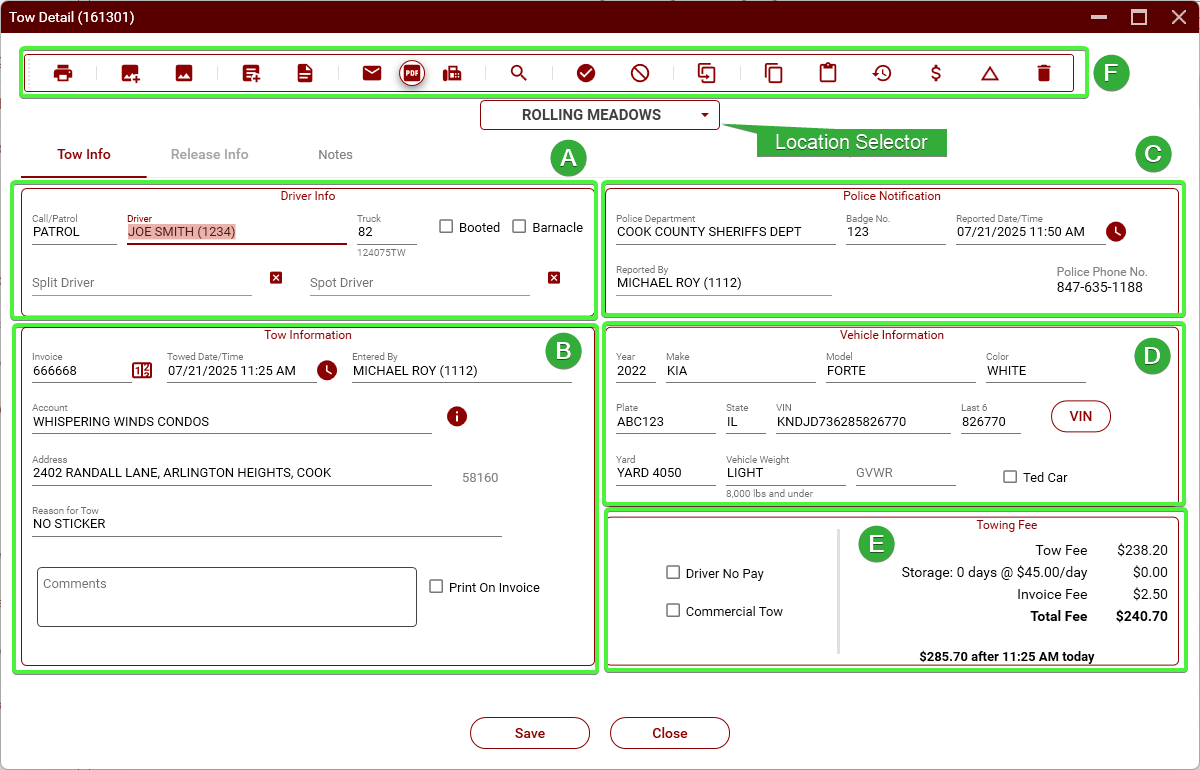
-
Location Selector.
Selects the appropriate location for the tow. This will filter the selections for driver and account so that only data from that location is shown. -
Section A - Driver Info
-
Call/Patrol – Selects the type of tow. When a tow is started by clicking "New Tow," this will default to PATROL. If initiated from a tow request, it will default to CALL. This can be changed as needed.
-
Driver – Select the tow truck driver.
-
Truck – Choose the tow truck number. If the selected driver has a truck assigned to them (see Truck Assign), it will auto-fill here.
-
Booted – Check this box if the vehicle was booted rather than towed.
-
Barnacle – Not used.
-
Split Driver – Select a second driver if two drivers are sharing the tow (e.g., for commission split).
-
Spot Driver – Used when one driver spotted the vehicle but another performed the tow (usually for heavy tows).
Section B - Tow Information
-
Invoice – This is the ICC invoice number. It will be automatically generated when a new tow is created. Always verify the number is correct.
-
Towed Date/Time – This is the date and time the driver hooked the vehicle.
-
Entered By – Name of the dispatcher who entered the tow. Auto-filled but can be changed if necessary.
-
Account – The name of the account (property or business) from which the vehicle was towed.
-
Address – The location the vehicle was towed from. Must be an address within TRIP. If the exact address isn't available, use the nearest address that is in TRIP.
-
Reason for Tow – The reason that the vehicle was towed. You should use one of the reasons that are in TRIP.
-
Comments – Additional notes or special circumstances related to the tow.
-
Print On Invoice – If checked, the comment will appear on the printed invoice.
Section C - Police Notification
-
Police Department – Select the department that was notified about the tow.
-
Badge No. – The badge number of the officer or dispatcher who took the call.
-
Reported Date/Time – Date and time when the tow was reported to the police.
-
Reported By – The dispatcher who made the police notification.
-
Police Phone No. – Phone number for the police department on record.
Section D - Vehicle Information
-
Year – Vehicle model year.
-
Make – Manufacturer (e.g., KIA).
-
Model – Specific model (e.g., FORTE).
-
Color – Vehicle color.
-
Plate – The license plate number.
-
State – The issuing state of the license plate.
-
VIN – Vehicle Identification Number. Click the red "VIN" button to verify the vehicle information from the VIN.
-
Last 6 – Last 6 digits of the VIN for quicker identification.
-
Yard – The storage yard the vehicle was taken to.
-
Vehicle Weight – Used to classify tow type. Defaults to "8,000 lbs. and under" for passenger vehicles.
-
GVWR – Gross Vehicle Weight Rating. Must be entered for medium and heavy tows. Enter the number only, no comma or extra characters.
Section E - Towing Fee
-
Tow Fee – Standard fee charged for the tow itself.
-
Storage – Calculated as days × daily storage rate.
-
Invoice Fee – Additional fixed fee (e.g., $2.50) added to light-duty tows (medium and heavy are not charged this fee).
-
Total Fee – Sum of all charges (Tow + Storage + Invoice Fee).
-
Estimate After Today – Shows projected total cost after additional storage time if not picked up the same day.
-
Driver No Pay – If checked, this tow will not count toward driver compensation.
-
Commercial Tow – Not used.
-
Section F - Menu Bar
|
|
Print Invoice | Prints the tow to the invoice printer. See Print Invoice. |
|
|
Add Images |
Upload one or more images related to the tow. See Images and Documents. |
|
|
View Images |
View images that have already been uploaded for this tow |
|
|
Add Documents |
Upload documents related to this tow. See Images and Documents. |
|
|
View Documents |
View previously uploaded documents for this tow. |
|
|
Email Invoice |
Sends the invoice to the associated property manager via email. |
|
|
Create PDF |
Generates a downloadable PDF version of the invoice. |
|
|
Fax Invoice |
Sends the invoice via fax to the appropriate police department. |
|
|
View History |
Opens the vehicle’s prior tow history, if available. |
|
|
Check DNT |
Checks whether this vehicle is on the existing do-not-tow list. |
|
|
Add to DNT |
Adds the vehicle to the do-not-tow list. |
|
|
Duplicate Tow |
Creates a new tow using the current one as a template. |
|
|
Copy Release Info |
Copies release information from this tow to the clipboard. |
|
|
Paste Release Info |
Pastes copied release information into this tow. |
|
|
View Vehicle Processing |
Displays the vehicle’s processing status. See Vehicle Processing. |
|
|
Generate Bill-Back |
Generates a bill-back form for reimbursement purposes. |
|
|
View Changes |
Shows all changes made to this tow record. |
|
|
Delete Tow |
Permanently deletes the current tow record. |


No comments to display
No comments to display