
Main Screen
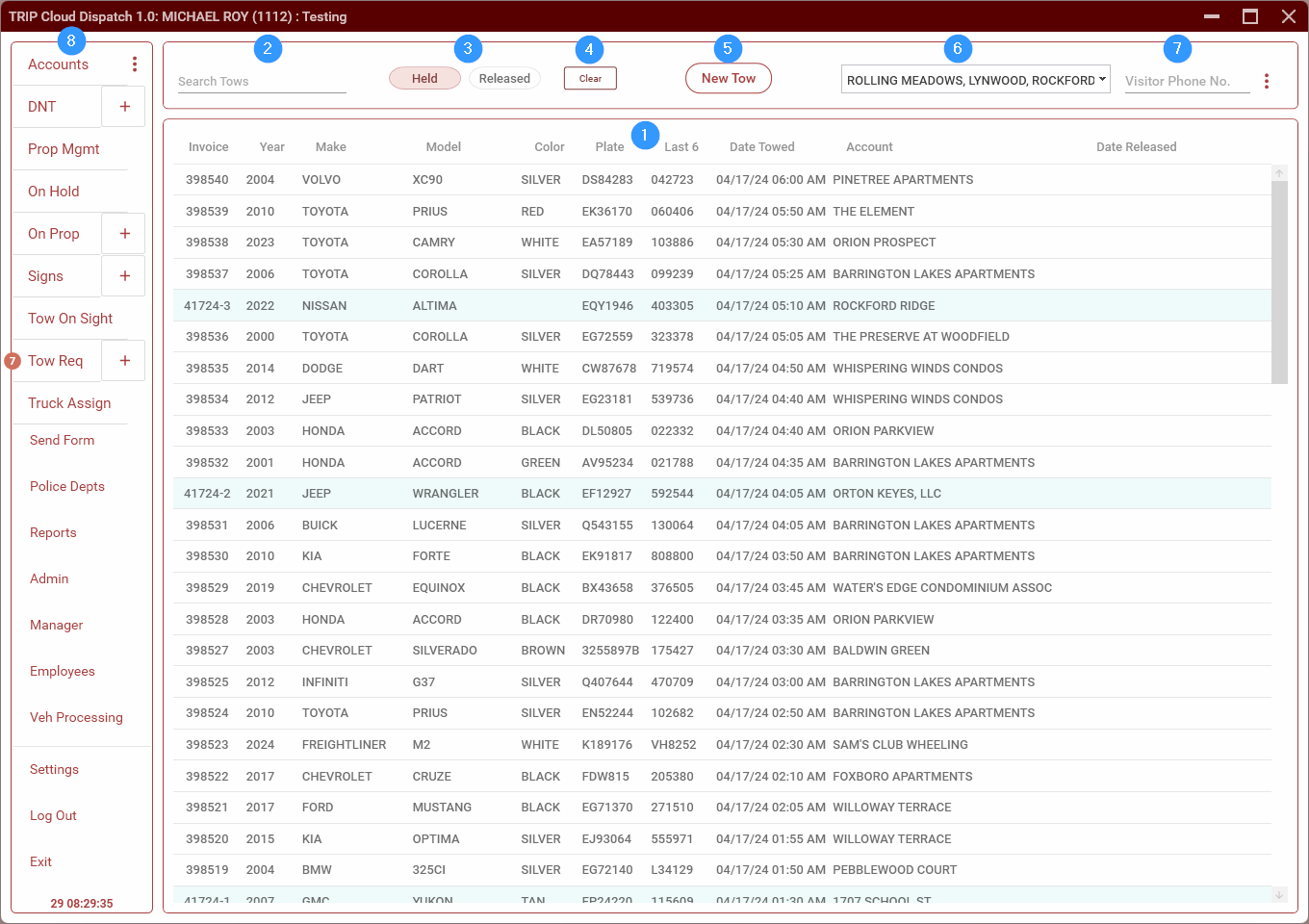
The Main Screen displays towed and released vehicles as well as a menu for navigating through the various sections.
- This section displays towed vehicles that are in our yard as well as vehicles which have been released. Use the Held/Released toggle (3) to switch between the two. See Tows for details.
- Search Bar. Use this to search tows. Enter a search term and press
ENTER. TRIP will display tows that match by make, model, plate or VIN. - Held/Released toggle. This switches between showing held vehicles (those which are still in our lot) and released vehicles.
- This button is used to record when a driver calls an account clear. Enter the account and diver, then click Save.
- New Tow. Clicking this will open an empty tow form where you can enter a new tow.
- Location Selector. Click on this this to select which locations are shown. Note that only the selected locations will be displayed throughout TRIP. This includes tows, accounts, property management, etc. The selected locations are not saved when you log out of TRIP. Go to Settings to set the default locations. Once set, they will be applied every time you log in.
- Visitor Call-Ins. This is used to register guest vehicles for overnight parking for some accounts.
- Side Navigation Menu. Navigates between the different screen in TRIP.
No comments to display
No comments to display