
Enter Visitor Call-In
When someone calls to register their vehicle for visitor parking, ask them for their phone number and enter it into the text box in the upper-right corner of the Main Screen.
Note that only a few accounts allow visitor call-ins. You can view which accounts allow visitor call-ins from the visitor call-ins from the Visitor Call-In Menu item.
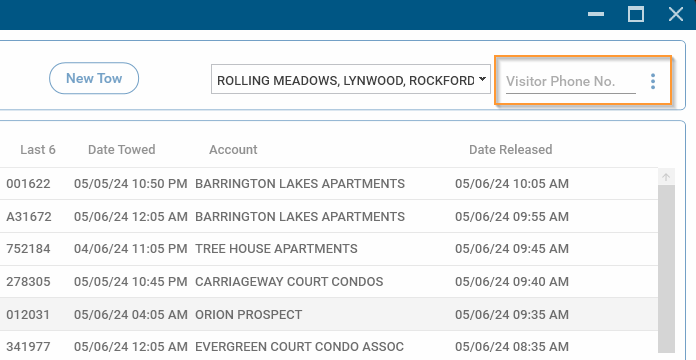
Enter the phone number without any dashes, ex: 8475551234 and press Enter.
New Resident Screen
If the phone number has not been registered previously, the New Resident Screen will be shown:
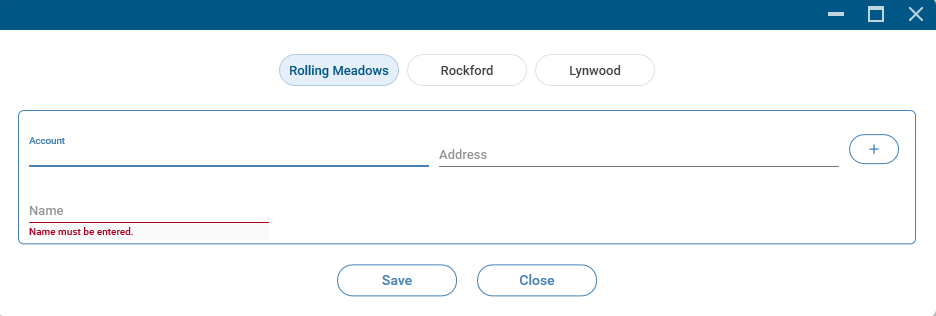
Enter the resident information starting with the Account. For accounts that have unit numbers, such as apartments, the unit number must also be entered.
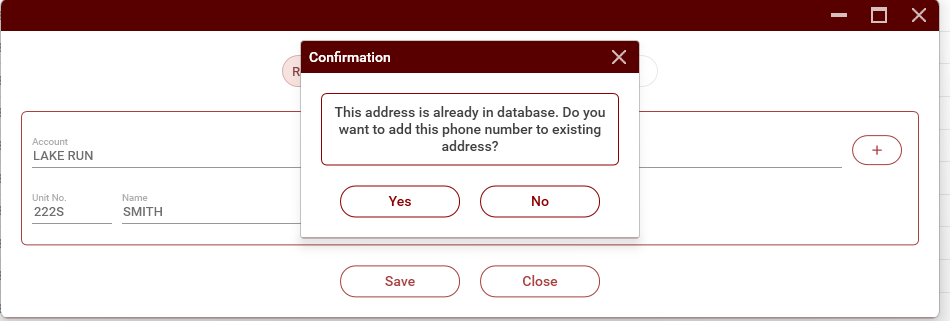
If the address (and unit number, where applicable) is already registered in the database, you will be asked if you want to add this phone number to the address (see image below). Confirm the information with the customer and, if correct, click on 'Yes'. The phone number will be added, and the Visitor Vehicle Screen will be shown for the resident.
Visitor Vehicles Screen
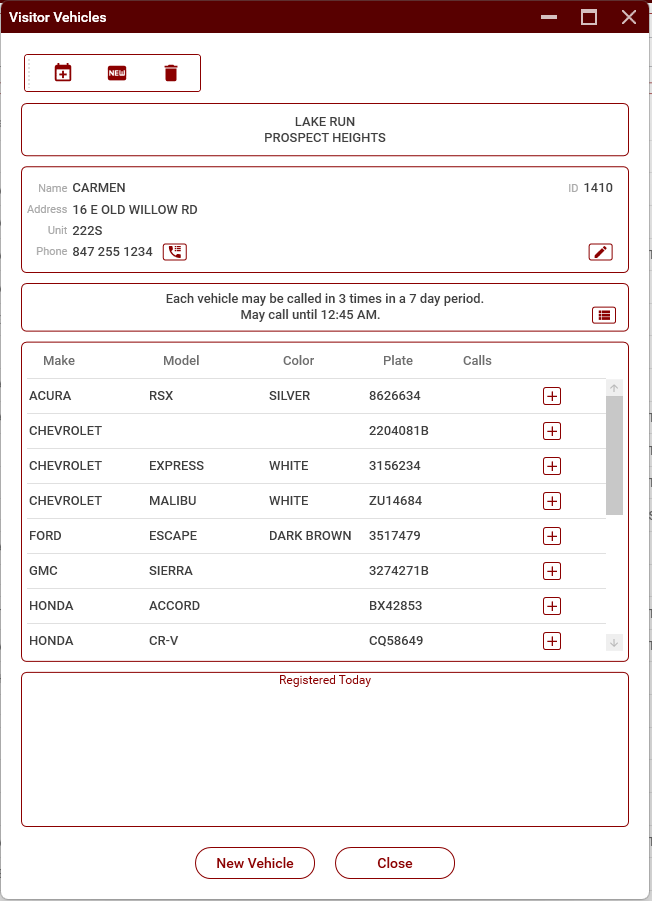
If the phone number is already in the database, the Visitor Vehicles Screen for that resident will appear. This screen shows the resident's information and lists all vehicles registered to the address.
Register an Existing Vehicle
To register a previously entered vehicle, click the Plus (+) sign in the column on the far right corresponding to the vehicle. The vehicle will now show in the bottom section under 'Registered Today'.
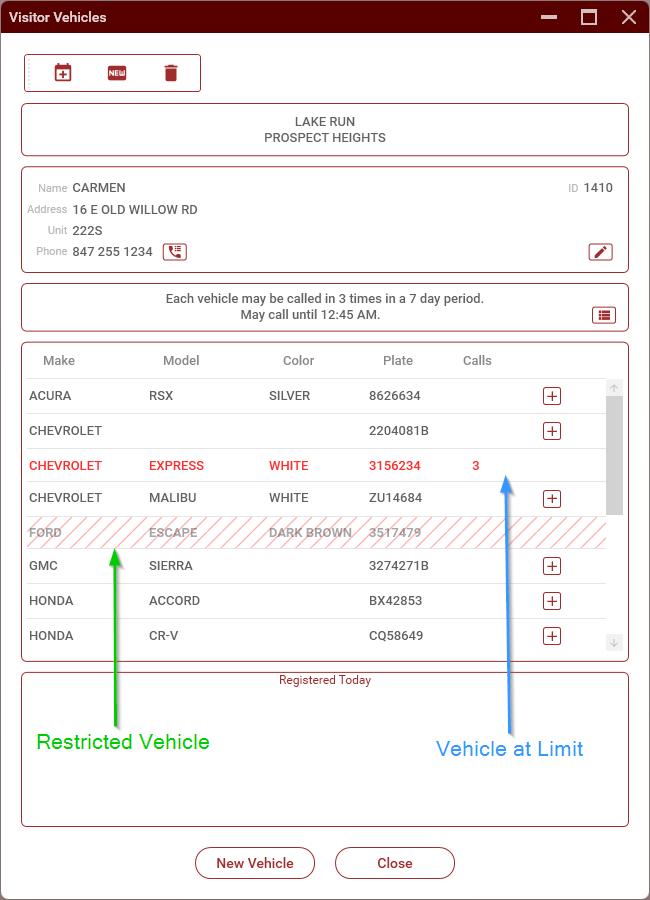
Any vehicle in red has reached its limit and may not be called in until the period has ended.
Any vehicle shown with red hatching has been restricted by the property management and may not be called in at all.
Register a New Vehicle
To register a vehicle that is not listed, click on the New Vehicle button. The New Visitor Vehicle screen will be shown:
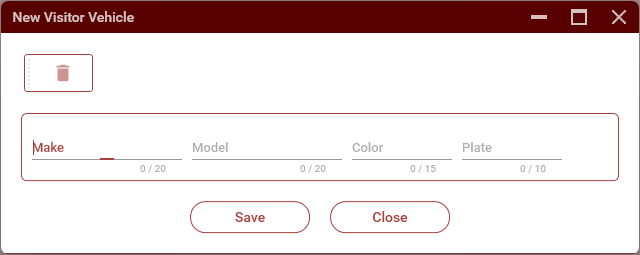
Enter the information for the vehicle then click Save. The vehicle will be registered for the evening.
If the 'New Vehicle' button is grayed out, the unit has reached its maximum calls for the period and may not register any more vehicles.
Note that the plate number must be entered. If the vehicle has temporary registration, enter that number. If the vehicle has neither, enter 'NONE' in the Plate field.
Register a Vehicle for Multiple Nights
Some accounts allow visitors to call in for more than one night at a time. For these accounts, the Multiple Night Registration Screen will be shown when you click the plus sign or register a new vehicle.
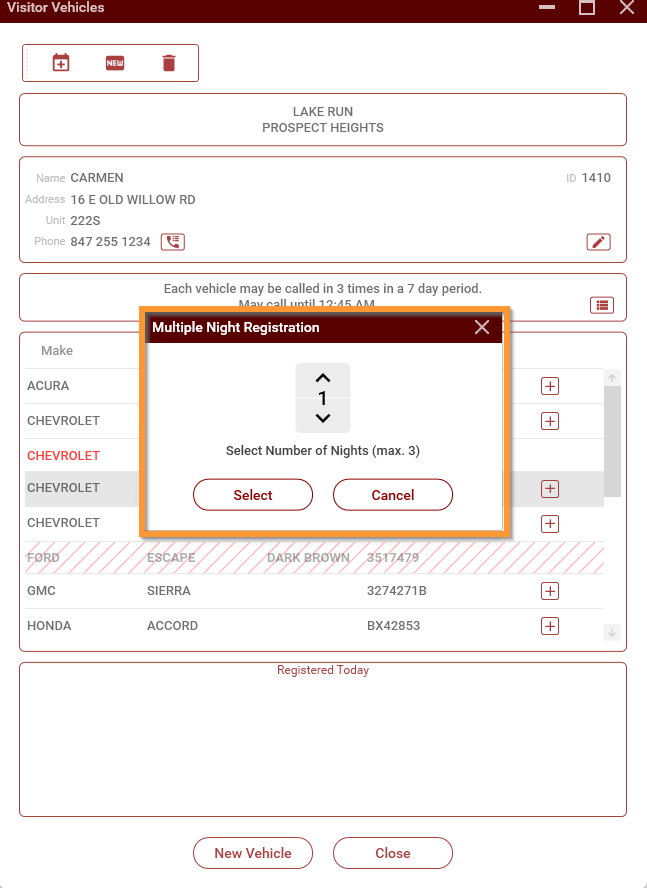
Use the up and down arrows to select the number of nights to register the vehicle, then click the 'Select' button.
You can only register for consecutive days (i.e. you cannot skip days).
TRIP will only allow you to register up to the maximum nights remaining for this vehicle or unit. For example: If a vehicle has already been called in twice this period and the account only allows vehicles to be called in 5 times per period, you will be allowed to select a maximum of 3 days.
No comments to display
No comments to display