
New Account
To enter a new account, click on 'Account' from the Main Screen then 'New Account'. The New Account dialog will open. The dialog has 2 tabs: Account Info and Management.
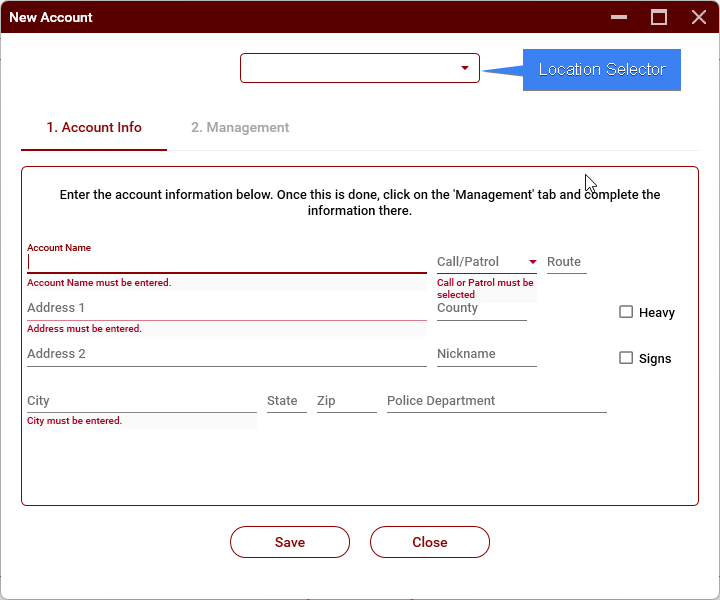
Starting with the Accounts tab, first select the location with the Location Selector, then enter the required information, including the police department. As you type the Account Name, a list of matching accounts will be shown. This helps to prevent duplicate accounts from being entered. If the account is already in TRIP, you will need to go to that account and make any necessary changes.
It's not unusual for a new property management company to not be aware that we already have an account for the property. Make sure not to re-enter the same account as this can result in confusion and problems down the line.
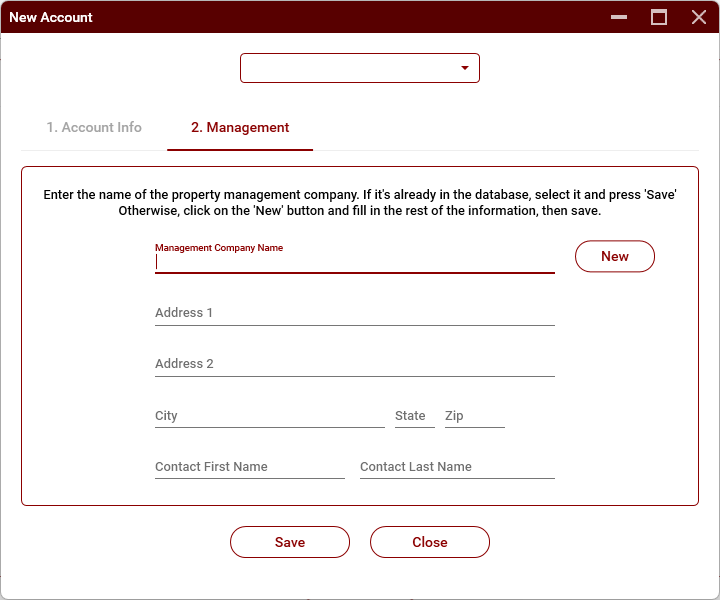
Once you have entered the account information, click on the Management tab and enter the required information there. As you type the Management Company Name, a list of matching property management companies will be shown.
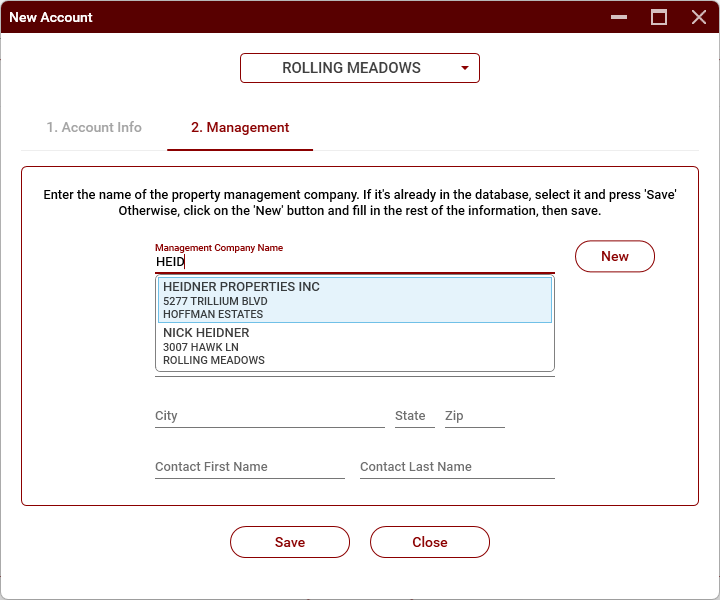
If the correct Mangement company is shown, select it.
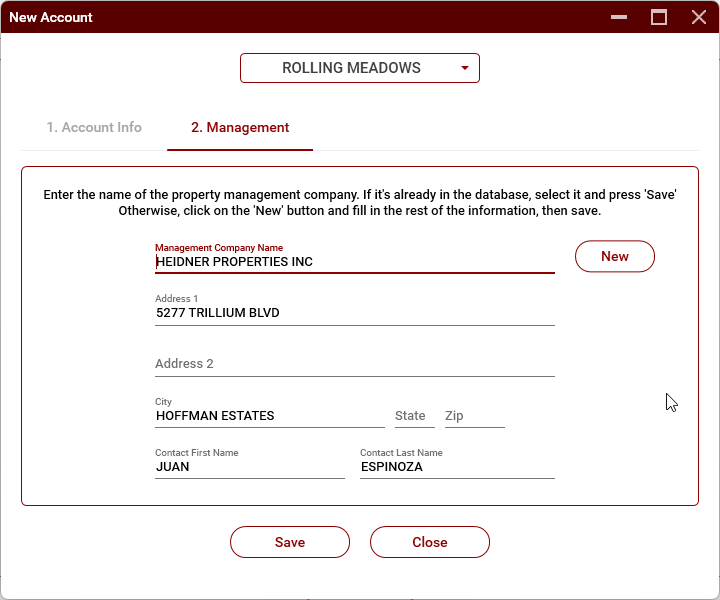
You can now click on Save to save the account.
If the correct management is not shown:
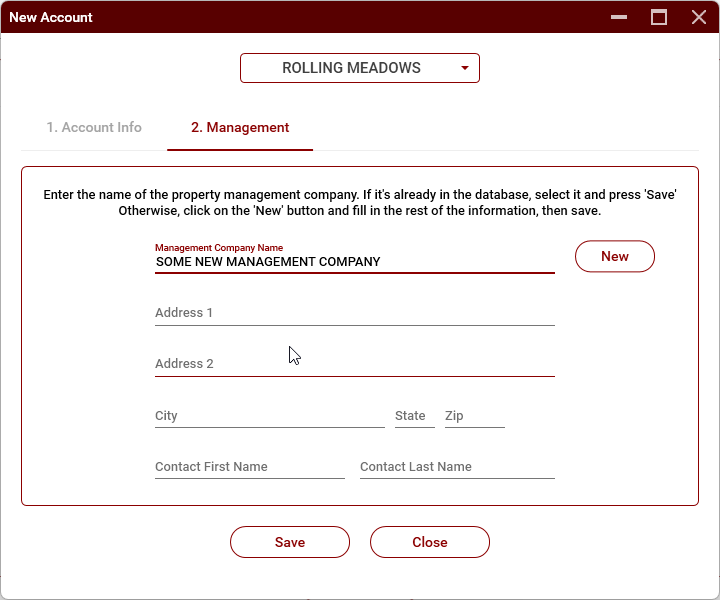
- Enter the full name of the property management company.
- Click on the New button.
- Enter the information for the new management company.
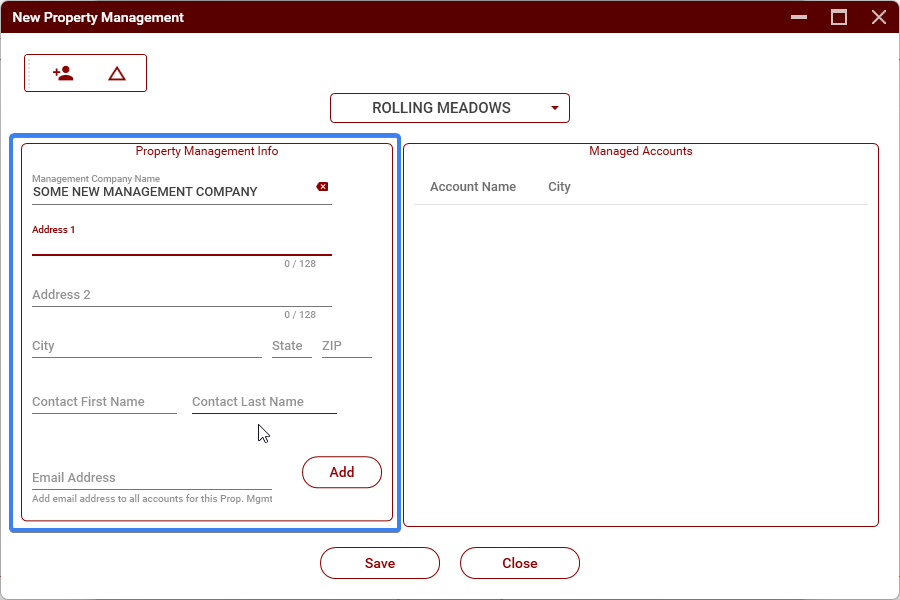
- Click on Save to save the new management.
- Click on Save on the account screen to save the account.
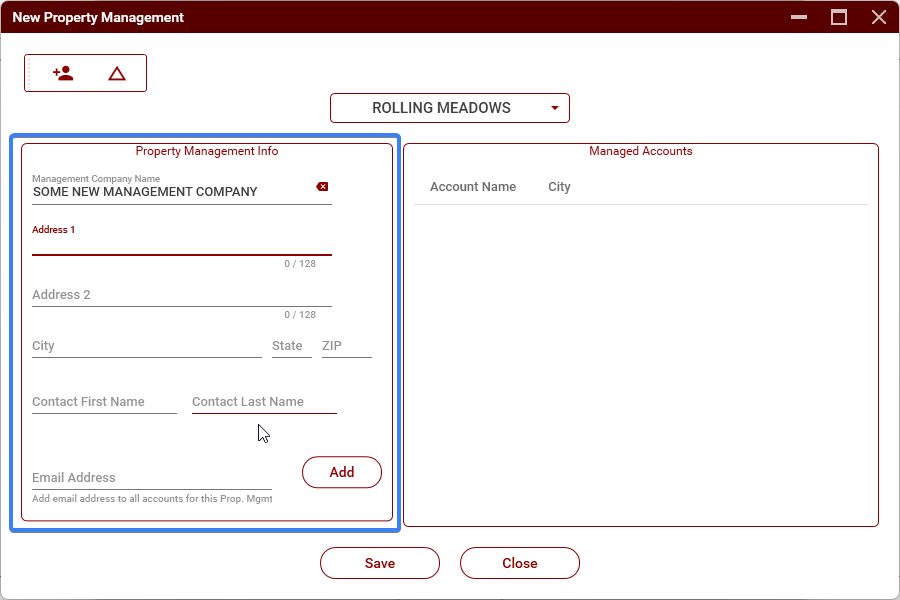
Some properties may not have a property management company. For these, enter the property owner's name for the Management Company Name.
No comments to display
No comments to display